
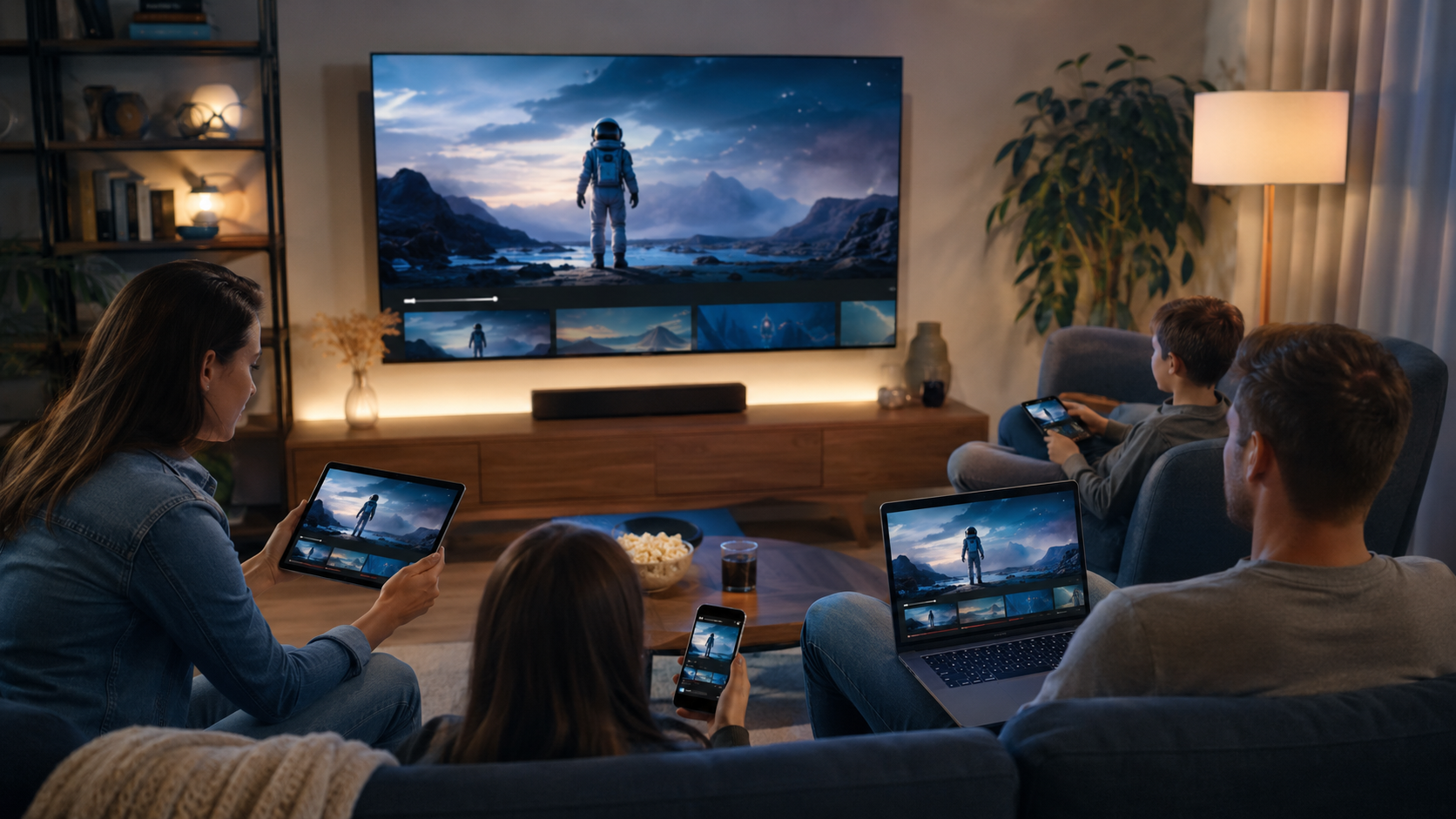
The CatchON TV app is the interface customers use to open live channels, movies, series, favorites, and the electronic program guide. The exact installation method can differ by device. Firestick and Android TV may use an Android-compatible app or player, while some Smart TVs rely on an app from the television’s store. Phones, tablets, and computers can use other compatible players.
Table of Contents
Table of Contents
Do not download the first APK or app that appears in a search result. Several websites use similar CatchON TV names, and unrelated download codes can point to different software. First choose the seller, confirm the supported app or player with its support team, and use the installation instructions associated with your order.
This guide explains what to verify before subscribing, how the normal setup flow works, and which plan fits a one-screen or multi-screen household.
Check CatchON TV Plans and Device Options
What Does the CatchON TV App Guide Do?
An IPTV app is usually a player and library interface. It organizes the subscription data delivered by the provider; it does not automatically make every channel or title available by itself. After activation, the customer signs in using the credentials or playlist method supported by the selected app.
The most useful app functions include:
- Live channel categories and search.
- Movie and series libraries.
- Electronic program guide data on supported channels.
- Favorite channels and recently watched items.
- Multiple audio tracks and subtitles when a stream provides them.
- Parental-control options supported by the player.
- External-player or decoder settings on some devices.
- Multi-screen viewing when both the app and subscription permit it.
Features vary by player, device operating system, and subscription. Confirm required functions before purchase instead of assuming that every app version is identical.
CatchON TV App Compatibility
| Device | Common setup route | What to verify before buying |
|---|---|---|
| Firestick / Fire TV | Compatible app or IPTV player | Model, free storage, current installation method |
| Android TV / box | App or player installation | Android version and decoder support |
| Samsung / LG Smart TV | Compatible player from TV app store | Model year, region, and login format |
| Android phone / tablet | Mobile app or IPTV player | Screen casting and background playback needs |
| iPhone / iPad / Apple TV | Compatible iOS or tvOS player | App-store availability and supported login method |
| Windows / Mac | Desktop player or web-compatible option | Hardware decoding and firewall permissions |
Compatibility is a model-level question. A statement that a service “works on Smart TV” is not enough because Samsung, LG, Roku TV, Android TV, and other platforms use different stores and software.
When completing the CatchON TV subscription form, select the device you actually plan to use. That gives support the information needed to send the correct setup route.
How CatchON TV App Setup Normally Works
Step 1: Choose the correct number of connections
A connection means one active stream. One connection is usually enough for one person watching one screen at a time. Two people watching different channels simultaneously need two connections. Installing the app on several devices does not automatically allow those devices to stream together.
Step 2: Select a subscription duration
Use a trial or short plan for the first test. A longer plan can reduce the effective monthly cost after you know the app, channels, and network work reliably in your home.
Step 3: Submit accurate order details
Enter a valid email address and select the correct device. Account credentials and setup instructions depend on this information. A typing error can delay activation or send instructions to the wrong address.
Step 4: Install only the confirmed app or player
Follow the current CatchON TV tutorial or the instructions sent with the order. On Firestick or Android devices, confirm the app name and source before installing. On Smart TV, use the app-store listing recommended for your model.
Step 5: Enter the delivered login details
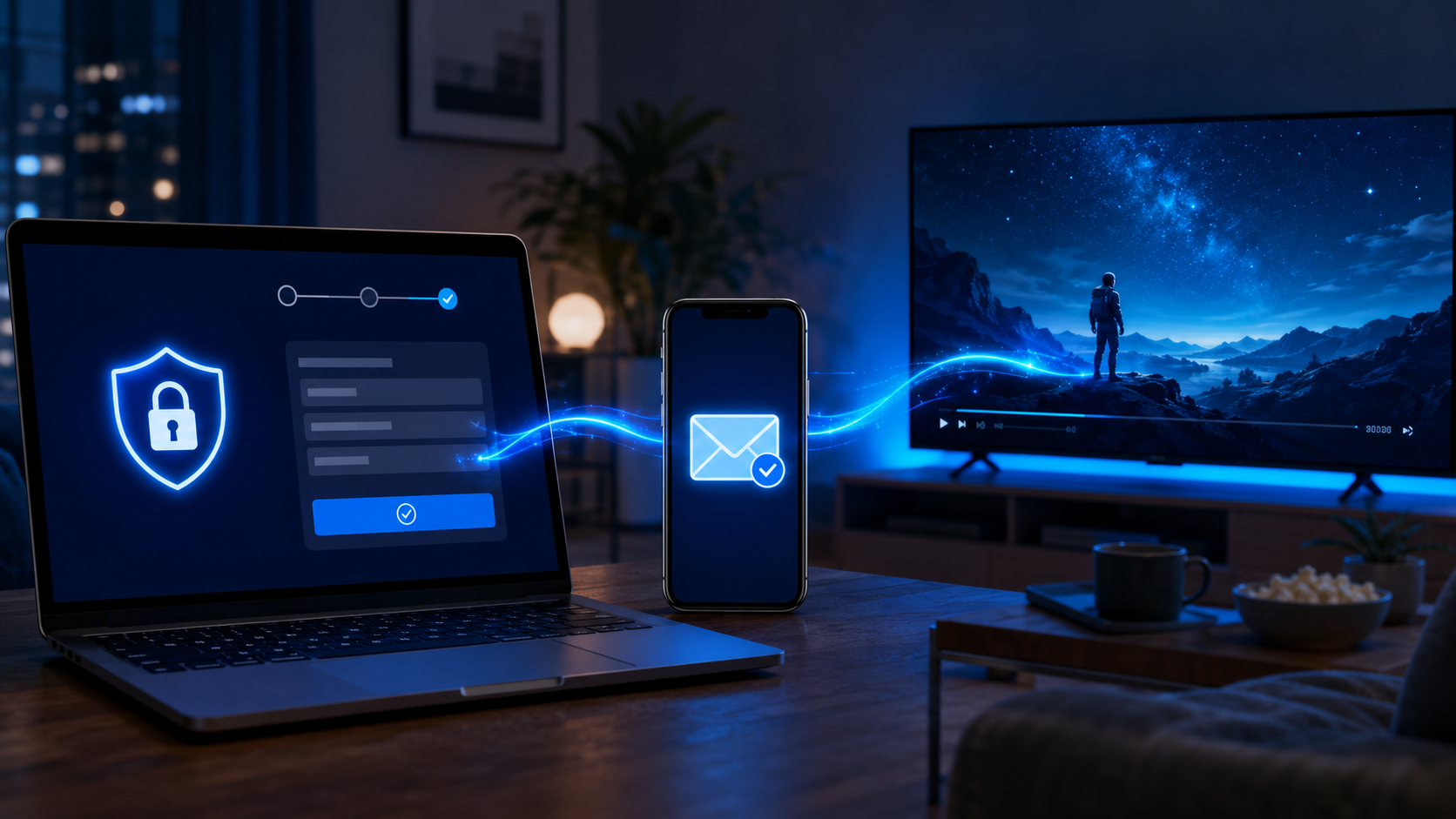
The provider may use a username and password, a server URL, an M3U playlist, or another supported login format. Type the information exactly as delivered. Do not publish or share credentials because another active login can consume a connection or expose the account.
Step 6: Refresh the content and EPG
Allow the first channel and guide refresh to finish. Large libraries can take time to populate on older devices. If the app offers automatic EPG updates, enable a reasonable schedule rather than forcing repeated refreshes.
Step 7: Test before choosing a longer term
Open required channels, several VOD titles, search, favorites, subtitles, and the program guide. Leave a stream running during your normal peak viewing hour. Contact support during the test if a core feature fails.
CatchON TV App on Firestick
Firestick is popular because it connects directly to a television and uses a simple remote. Performance depends on the Firestick generation, free storage, Wi-Fi signal, and the player’s decoder settings.
Before installation:
- Update Fire OS.
- Remove unused apps and clear unnecessary cache.
- Restart the Firestick and router.
- Connect to a strong 5 GHz Wi-Fi network when possible.
- Confirm the current app name or installation source with support.
After login, test remote navigation and the back button. Open a live channel, switch several times, return to the guide, and play an on-demand title. If video is black but audio works, change the app’s hardware/software decoder setting one step at a time.
Never reuse a download code copied from an unrelated seller. A code can change destination, and a visually similar app may not be the one configured for your subscription.
CatchON TV App on Smart TV
Smart TV setup depends on the operating system. Samsung and LG televisions often use a compatible IPTV player from their app stores. Android TV models offer a different selection, while Roku-based televisions have more restricted installation options.
Check the television model, year, and country setting. App availability can differ by region. If your television has weak hardware or limited storage, an external streaming device can provide a faster and more consistent interface.
The subscription and player can be separate products. Some Smart TV players charge their own one-time or recurring activation fee. Confirm that cost before buying so the total setup price is clear.
EPG, Favorites, Search, and Parental Controls
The program guide is central to live-TV navigation. A useful EPG should show current and upcoming programs, use the correct time zone, and refresh without blocking the app.
If the guide is empty:
- Confirm the device date, time, and time zone.
- Refresh the EPG inside the player.
- Restart the app after the refresh completes.
- Check several channels because some feeds may lack guide data.
- Send support the app name, device model, and screenshots if the issue remains.
Build a short favorite list instead of navigating the full catalog every day. Use parental controls for categories that should not be available to children, and set a PIN that is not shared with the viewing profile.
How to Improve CatchON TV App Performance
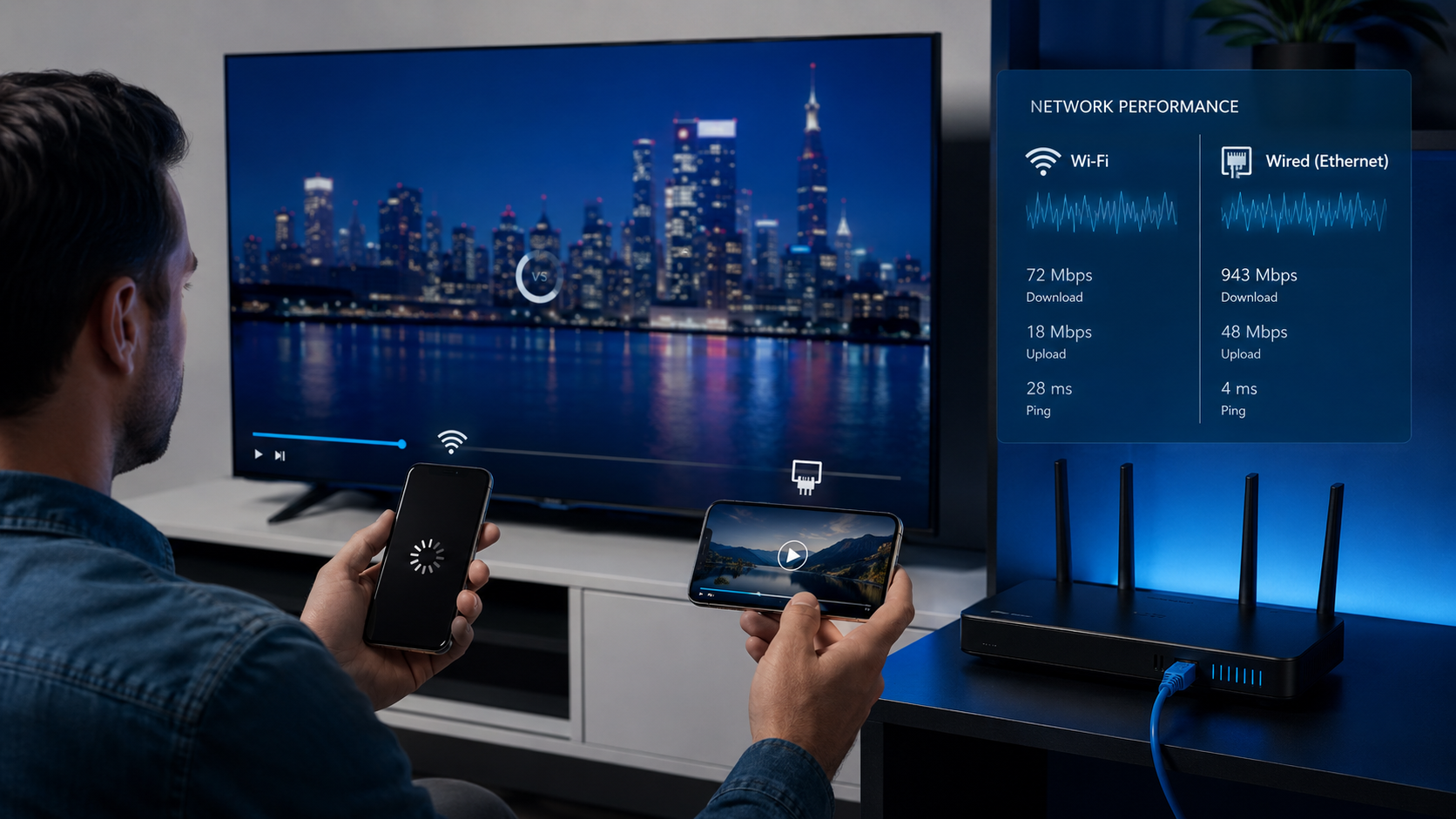
Use Ethernet when possible
A wired connection removes much of the interference and distance problem associated with Wi-Fi. If Ethernet is unavailable, move the router closer or use a properly placed mesh access point.
Keep storage available
Low storage can slow navigation and cause apps to close. Remove unused applications, clear cache, and avoid running multiple players in the background.
Match quality to the connection
A stable HD stream is better than a 4K stream that repeatedly buffers. Test the same channel at another available quality before deciding that the whole service is unstable.
Avoid aggressive setting changes
Change one setting at a time and retest. If you change decoder, buffer, EPG, player, and network settings together, you will not know which action fixed or caused the problem.
Diagnose one channel versus all channels
If only one channel fails, report that channel. If every channel fails, check credentials, connection limits, app status, device networking, and account activation.
Which CatchON TV Plan Fits Your App Usage?
| Household use | Connections to consider | Starting duration |
|---|---|---|
| One television at a time | 1 | 1 or 3 months |
| Television plus a second simultaneous screen | 2 | 3 months |
| Family with three active screens | 3 | 3 or 6 months |
| Four or five simultaneous viewers | 4–5 | Trial first, then 3 or 6 months |
| Existing customer with proven stability | Actual peak connections | 6 or 12 months |
More connections do not increase resolution or channel count. They authorize more simultaneous streams. Buy only what your household uses at the busiest time.
Choose Duration and Connections
CatchON TV App Buying Checklist
Before checkout, confirm:
- The exact device model is supported.
- The required app or player source is clear.
- Any separate player activation fee is known.
- The selected plan includes enough simultaneous connections.
- Trial availability and duration are confirmed.
- Required channel categories are available for testing.
- Refund, privacy, and support pages are accessible.
- The checkout domain matches the website you evaluated.
This checklist matters because an app screenshot cannot prove seller identity, content rights, channel availability, or support quality. Treat setup and subscription as one decision.
Final Recommendation
The CatchON TV app can provide a convenient interface across popular devices when the correct player, login method, network, and connection plan are matched. The strongest buying path is simple: verify the app for your exact device, test the required channels, confirm EPG and remote behavior, then choose the shortest subscription term that fits your confidence.
Once the setup performs reliably under normal household load, renew into a longer plan if the lower effective monthly cost is valuable.
Frequently Asked Questions
Where can I download the CatchON TV app?
Use the app name, store listing, or installation source provided by the seller connected to your order. Do not use an unrelated download code from a search result.
Does the CatchON TV app work on Firestick?
The service advertises Firestick support. Confirm your model, free storage, and current installation method before ordering.
Can I use the app on more than one device?
You can use compatible devices, but simultaneous viewing is limited by the connection count purchased with the subscription.
Why is my EPG empty?
Check the device time zone, refresh the guide, restart the app, and test several channels. Contact support with the app and device details if it remains empty.
Does the app include channels?
The app is the player interface. Channel and VOD access depends on the active subscription and the provider’s available catalog.
Is the CatchON TV app free?
The player and subscription can have separate costs. Some apps are free; others charge an activation or subscription fee. Verify both before purchasing.
What is the best device for CatchON TV?
A current Firestick or Android TV device with sufficient storage and stable networking is a practical choice. The best device is the one that supports the confirmed player and your required video quality.
How do I subscribe after installing the app?
Select the duration and simultaneous connections on the CatchON TV subscription page, submit correct device and email details, then follow the delivered activation instructions.
