
People searching how to install CatchON TV need instructions that match their exact device and login format. Installation is not identical across Firestick, Android TV, Samsung TV, LG TV, iPhone, Apple TV, Windows, and macOS. The safest approach is to confirm the recommended app or IPTV player from the current order email, install it from a trusted source, and enter the credentials exactly as delivered.
Before installation, complete the subscription order and wait for the activation details. Depending on the selected setup, the credentials may include a username, password, server address, playlist link, or activation code. The app must support the same login method.
Check the current setup instructions: Open the CatchON TV tutorial page and match the guide to the exact device model. Do not reuse an old download code or install an app sent by an unrelated seller.
Table of Contents
- What You Need Before Installation
- CatchON TV Device Comparison
- How to Install CatchON TV in Seven Steps
- CatchON TV on Firestick and Fire TV
- CatchON TV on Android TV and Android Devices
- CatchON TV on Samsung and LG Smart TVs
- CatchON TV on iPhone, iPad, and Apple TV
- CatchON TV on Windows and macOS
- Login, EPG, and Player Settings
- Installation Troubleshooting
- Conclusion
- Frequently Asked Questions
What You Need Before Installation
Start with an active subscription or test account and the complete login information. A payment receipt alone does not contain everything the app needs. Wait for the activation message and save it securely.
Identify the exact device model and operating system. Samsung televisions use a different platform from LG televisions. A Firestick is an Amazon Fire TV device, while many streaming boxes use Android TV or Google TV.
Check available storage and install operating-system updates. Low storage can cause failed installations, slow playlist loading, crashes, and interrupted updates.
Use a stable internet connection. Test speed on the streaming device, not only on a phone. Ethernet is usually more stable where available, while a strong 5 GHz Wi-Fi signal is preferable to a weak or congested connection.
Confirm whether the recommended player has a separate fee. The CatchON TV subscription and the IPTV application can be separate products.
CatchON TV Device Comparison
| Device | Typical Installation Route | Main Advantage | Main Limitation | What to Confirm |
|---|---|---|---|---|
| Firestick or Fire TV | Amazon Appstore or guided Android installation method | Simple remote and TV interface | Storage and older-model performance | Exact app name, source, and free space |
| Android TV or Google TV | Google Play Store or confirmed Android package | Broad player compatibility | Settings differ by manufacturer | Login format and decoder options |
| Android phone or tablet | Google Play Store or confirmed source | Easy testing and mobile use | Small screen and mobile-network variation | App permissions and connection limit |
| Samsung Smart TV | Compatible player from Samsung App Store | No separate streaming box required | Player choice and memory vary by model | Model year, availability, and app fee |
| LG Smart TV | Compatible player from LG Content Store | Direct TV installation | Older webOS versions can be limited | App support and login method |
| iPhone, iPad, or Apple TV | Compatible player from Apple App Store | Controlled app-store installation | Some players require a separate purchase | Xtream, M3U, or portal support |
| Windows or macOS | Compatible desktop player | Keyboard search and easier diagnostics | Computer must remain connected | Firewall, app source, and codec support |
Choose the device based on reliability and ease of maintenance, not only convenience. An older built-in Smart TV app can be slower than a current streaming stick even on the same internet connection.
Test before choosing a long subscription: Install the player, confirm login, open essential channels, refresh the EPG, and test during normal viewing hours. Compatibility testing reduces the risk of committing to a longer plan that does not work well on the main device.
How to Install CatchON TV in Seven Steps
Confirm the Current App or Player
Read the activation email and current tutorial. Write down the exact application name, operating system, login method, and download source.
Do not search for a visually similar app and assume it is correct. Several players can have similar names, and an unrelated download can request unnecessary permissions or fail to support the credentials.
Prepare the Device
Update the operating system, restart the device, and remove unused applications. Confirm enough free storage for the player, cache, guide data, logos, and updates.
Restart the router when the network has been unstable. Connect the device to Ethernet or strong Wi-Fi before downloading the app.
Install From the Normal App Store When Possible
Search the device’s official app store for the exact recommended player. Review the developer name, supported devices, permissions, and pricing before installation.
When the required app is not available in the store, use only the current installation source supplied through the official tutorial or order instructions. Do not install packages from random forums, social-media comments, or copied download codes.
Open the App and Select the Correct Login Type
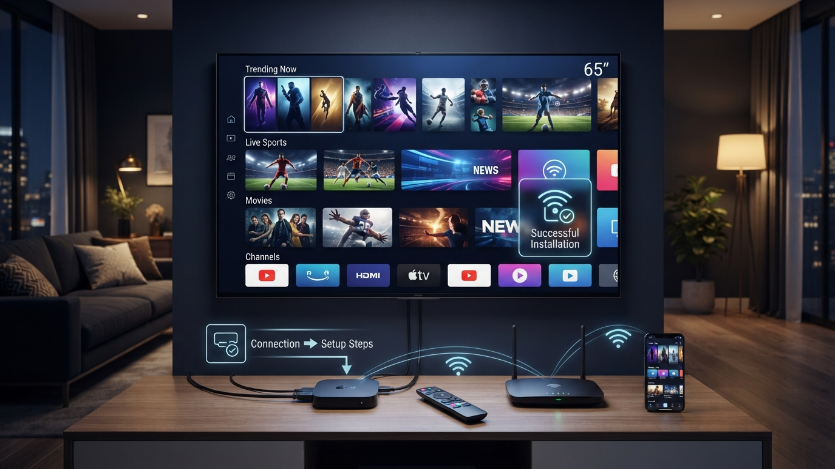
Players may offer Xtream Codes, M3U playlist, portal, activation code, or provider login. Select the method that matches the information received.
Choosing M3U when the provider supplied a server, username, and password can create an unnecessary setup problem. Follow the labels in the activation message.
Enter the Credentials Exactly
Type the account name, username, password, server address, playlist URL, or code as required. Check punctuation, capitalization, and spaces.
On a television remote, characters such as zero and the letter O can be confused. Use the device’s mobile keyboard feature where available or copy and paste securely.
Allow the Content and EPG to Load
The first synchronization can take time, especially on an older device or large playlist. Keep the app open and avoid submitting the same account repeatedly.
After the live channels load, refresh the EPG if the guide remains empty. Confirm the date, time, and time zone on the device.
Test and Optimize
Open several live channels, switch categories, search for content, add favorites, test a movie or series, and verify remote navigation. Check audio, subtitles, aspect ratio, and synchronization.
If one stream has a problem, compare other streams before changing global settings. A single source issue does not always require reinstalling the complete app.
CatchON TV on Firestick and Fire TV
Firestick setup should begin with an updated Fire OS version and enough free storage. Delete unused apps and clear unnecessary cache before installation.
Search the Amazon Appstore for the player identified in the current instructions. When the required application uses a guided installation method outside the store, confirm the exact current source from CatchON TV before changing device permissions.
Avoid leaving installation permissions enabled for unrelated apps. After setup, return permissions to the minimum required state and delete unused installation files to free storage.
Open the player and enter the delivered credentials. Test the directional buttons, back button, guide, search, and favorites. If the video is black while audio works, change the decoder setting between hardware and software modes one step at a time.
For better performance, use a recent Firestick model, strong 5 GHz Wi-Fi, or Ethernet through a compatible adapter. Restarting the Firestick and router can clear temporary memory and network issues.
CatchON TV on Android TV and Android Devices
Android TV, Google TV, Android boxes, phones, and tablets support many IPTV players. Use the Google Play Store when the recommended player is available there.
Confirm that the player supports the delivered login type. Some applications are designed around Xtream credentials, while others require an M3U URL or portal address.
Review permissions before installation. A streaming player normally needs network access and may need storage access for cache or downloads, but it should not require unrelated access to contacts, messages, or accessibility controls without a clear reason.
On Android TV, adjust hardware decoding only when playback requires it. On phones, test both Wi-Fi and mobile data carefully because network speed, data limits, and provider restrictions differ.
CatchON TV on Samsung and LG Smart TVs
Samsung and LG televisions commonly use compatible IPTV players from their television app stores. App availability depends on the country, model year, and operating-system version.
Search the store for the player named in the setup instructions. Some Smart TV players display a device ID or MAC address and require playlist activation through the player’s website. Others accept Xtream credentials directly.
A player activation fee does not normally pay for the CatchON TV subscription. It pays the app developer for use of the interface. Confirm both costs separately.
Older televisions can struggle with large playlists and EPG data. Hide unused categories where the player allows it, clear cache, and consider a separate streaming stick when the built-in app remains slow.
Do not assume that an Android installation package can run directly on Samsung Tizen or LG webOS. Use an app designed for the television platform unless the manufacturer explicitly supports another method.
CatchON TV on iPhone, iPad, and Apple TV
Use the Apple App Store to install a compatible IPTV player. Confirm that it supports the supplied login method and the required device.
Enter credentials manually or through a secure copy-and-paste method. Do not store them in a public note or send screenshots containing passwords to people who do not need them.
Apple TV setup may be easier when the same player is installed on an iPhone or iPad and supports account synchronization. Connection limits still apply even when the app is installed on several Apple devices.
Check whether the app offers EPG, favorites, subtitles, AirPlay, and parental controls. These are player features and can vary independently from the subscription.
CatchON TV on Windows and macOS
Install a reputable desktop player compatible with the delivered credentials. Download it from the developer’s official website or the operating system’s app store.
Allow the app through the firewall only when required for streaming. Avoid disabling the firewall or antivirus globally merely because a playlist does not load.
Desktop setup is useful for testing because a keyboard makes it easier to enter long URLs and search a large playlist. It also helps distinguish an account problem from a Smart TV performance problem.
Use HDMI to connect the computer to a television when needed. Confirm display resolution, audio output, and power settings so the computer does not sleep during viewing.
Login, EPG, and Player Settings
Name the account clearly, such as “CatchON TV Living Room,” especially when the player stores several playlists. This reduces the chance of editing or deleting the wrong account.
Refresh live TV and VOD separately when the player offers separate controls. Do the same for the EPG. Guide data can load after the channel list and may require additional time.
Set the correct time zone. When the EPG is shifted by one or more hours, compare the device clock, daylight-saving settings, and player EPG offset.
Use favorites to reduce navigation time. Hide unused countries or categories only after confirming that the player can restore them.
Video quality depends on the source, device, application, internet connection, and selected stream. Channel and 4K availability can vary. Do not force the highest-quality stream when the device or network cannot maintain it.
Installation Troubleshooting
App Will Not Install
Check operating-system compatibility, free storage, app-store region, and device security settings. Confirm that the file or app is designed for that platform.
Invalid Username or Password
Re-enter every field exactly. Remove spaces, verify the server address, and confirm the account has been activated. Ask support whether the login method is Xtream, M3U, portal, or code-based.
Channels Do Not Load
Test the internet connection, restart the app and device, and verify account expiration. Compare the account on another compatible device when permitted to separate a device issue from an account issue.
EPG Is Empty
Refresh the guide, confirm the time zone, and wait for the first import. Report the exact affected channels if the problem persists.
Buffering Occurs
Run a speed test on the device, use Ethernet where practical, move closer to the router, reduce resolution, close background apps, and compare several channels. Performance depends on more than the subscription alone.
App Crashes or Becomes Slow
Clear cache, free storage, restart the device, update the player, and reduce unnecessary categories. An external streaming device may be more reliable than an older Smart TV app.
For persistent issues, contact the CatchON TV help page with the device model, app name and version, login method, error message, and steps already attempted.
Conclusion
Knowing how to install CatchON TV begins with matching the correct app to the correct device and credential format. Prepare the device, use a trusted installation source, enter the login details exactly, allow the content and guide to load, then test the complete setup under normal conditions.
Do not choose a long plan until the main device, essential channels, EPG, remote navigation, audio, and network performance have been verified. The subscription, player, device, and internet connection work together, and a weakness in any one of them can affect playback.
Open the CatchON TV app guide, follow the instructions for your device, and use the published support channel when a specific error continues after basic troubleshooting.
Frequently Asked Questions
Which App Do I Need for CatchON TV?
The correct app depends on the device and the credentials supplied with the subscription. Use the current order email or tutorial rather than selecting a player at random.
Can I Install CatchON TV on a Firestick?
A Firestick can use a compatible app or IPTV player. Update Fire OS, free storage, confirm the current installation source, then enter the delivered credentials.
Can I Install CatchON TV Directly on a Samsung or LG TV?
Many models can use a compatible player from the television’s app store. Availability depends on the model, operating system, country, and player support.
Why Does the App Say Invalid Credentials?
The most common causes are incorrect capitalization, extra spaces, the wrong server address, an inactive account, or choosing the wrong login method.
Does the IPTV Player Cost Extra?
It can. Some players are free, some charge once, and others require a recurring fee. The app fee is normally separate from the streaming subscription.
Why Is the EPG Missing After Installation?
The guide can require a separate refresh and additional loading time. Check the device time zone and report persistent missing data with the exact channel names.
Can I Use the Same Account on Two Devices?
The app may be installed on more than one device, but simultaneous streaming depends on the number of connections purchased and the provider’s current rules.
Should I Reinstall the App When One Channel Fails?
No. Test several channels first. A single channel problem is often source-specific and does not require a complete reinstall.
Focus keyword usage count: 4
Secondary keywords used: install CatchON TV, CatchON TV app, CatchON TV on Firestick, CatchON TV on Smart TV, CatchON TV setup, IPTV player
Suggested schema: HowTo, Article, FAQPage, and BreadcrumbList
Suggested featured image alt text: How to install CatchON TV on Firestick Smart TV Android and computer
Article 4
SEO Title: Is CatchON TV Any Good? 7 Smart Checks | CatchON TV USA
Meta Description: Discover whether CatchON TV is any good by comparing channels, setup, devices, pricing, support, and testing steps before choosing a subscription plan today.
Recommended URL: https://catchontvus.com/is-catchon-tv-any-good/
Is CatchON TV Any Good? A Transparent 2026 Buyer Review
People asking is CatchON TV any good are rarely looking for a simple yes or no. They want to know whether the service fits their channels, device, internet connection, household viewing, budget, and willingness to troubleshoot an IPTV application.
A responsible CatchON TV review should not invent ratings, customer totals, uptime percentages, licensing claims, or performance tests. The useful answer is conditional: CatchON TV may be a practical choice when its current channel categories, supported player, connection options, payment process, and support workflow match the buyer’s requirements.
It may be a poor fit when a specific channel cannot be confirmed, the main device is unsupported, or the customer expects every stream to remain identical at all times.
The best evaluation comes from checking the current plan, testing the exact device, reviewing the policies, and measuring normal evening performance rather than relying on broad marketing claims.
Start with the buyer evidence: Compare the current CatchON TV subscription options and list the channels, devices, and simultaneous streams your household actually needs.
Table of Contents
- What Makes an IPTV Service Good
- CatchON TV Buyer Criteria Compared
- Channel Selection and Content Fit
- Device and App Experience
- Streaming Quality and Internet Factors
- Pricing, Connections, and Commitment
- Support, Policies, and Trust Checks
- Who CatchON TV May Suit
- Who Should Choose Another Option
- How to Evaluate CatchON TV in Seven Checks
- Conclusion
- Frequently Asked Questions
What Makes an IPTV Service Good
A good service should match the customer’s actual use case. A massive advertised catalog is not valuable when the five channels a household watches are missing or difficult to find.
The service should also work on the main device through a stable, understandable application. Easy installation, accurate login instructions, searchable categories, favorites, reliable remote navigation, and usable EPG data often matter more than decorative app features.
Price should be evaluated against duration and simultaneous connections. A low one-screen price is not a bargain for a family that regularly needs three active streams.
Support quality matters when activation, login, EPG, or playback problems occur. Useful support asks for the device model, player, error message, affected content, and steps already attempted instead of repeatedly sending generic instructions.
Finally, the seller should provide readable terms, refund information, contact details, and a consistent payment process. These signals improve transparency, although they do not by themselves prove content authorization or guarantee performance.
CatchON TV Buyer Criteria Compared
| Criterion | What a Good Result Looks Like | What Buyers Should Verify | Warning Sign |
|---|---|---|---|
| Essential channels | Required local, sports, news, language, and family content is available | Exact names and regions from the current list or support | Buying only because of a large advertised total |
| Device compatibility | Recommended app runs well on the main device | Exact model, operating system, player, and login format | Claim that every Smart TV works the same way |
| Simultaneous viewing | Connection count matches peak household use | One, two, or more active streams as needed | Confusing installations with connections |
| Playback quality | Stable performance during normal viewing hours | Device speed, Wi-Fi, internet, decoder, and source | Promise of zero buffering under all conditions |
| EPG and navigation | Guide, search, favorites, and categories are usable | Refresh process, time zone, and player functions | Assuming the subscription controls every app feature |
| Payment process | Written plan and amount match the final payment | Method, recipient, receipt, and activation message | Unexplained price or recipient changes |
| Support | Specific help for setup and technical issues | Published contact route and required diagnostics | Payment request without meaningful answers |
| Policies | Current terms and refund conditions are readable | Eligibility, exclusions, and troubleshooting steps | Treating a policy page as automatic approval |
No single criterion decides whether CatchON TV is good. The service must pass the combination that matters to the buyer.
Test the complete setup before a long commitment: Use the shortest practical term or current test option, confirm whether it is paid or free, and test the intended device, essential channels, EPG, remote, and evening playback before selecting six or twelve months.
Channel Selection and Content Fit
CatchON TV presents live television and on-demand categories, but the useful question is whether it includes the specific content a customer watches. Broad labels such as “sports,” “USA,” or “international” are not precise enough for a purchase decision.
Create an essential list containing local affiliates, national networks, sports leagues, regional feeds, news sources, languages, children’s programming, and any must-have international channels. Then compare that list with the current CatchON TV channels page.
Ask support to confirm content that determines the purchase. Availability can change by plan, source, device, application, location, schedule, and event. Channel names can also represent different regional feeds.
Video on demand should be evaluated separately from live television. Check title search, episode order, audio language, subtitles, metadata, and resume playback. A large VOD category does not guarantee that a specific title or language is currently available.
Channel and 4K availability can vary. A 4K label does not prove native resolution, identical bitrate, or compatibility with every television and player.
Device and App Experience
The application controls much of the daily experience. It determines how the user searches, creates favorites, hides categories, views EPG data, changes subtitles, and navigates with a remote.
CatchON TV can be used through compatible apps or IPTV players depending on the device and credentials. Firestick and Android TV generally provide broad player choices. Samsung and LG televisions depend on their app stores and model years. Apple devices and computers use other compatible players.
The player may charge separately from the CatchON TV subscription. Verify whether the app is free, paid once, or billed periodically.
Older Smart TVs can be slow with a large playlist. A current streaming stick may produce a better interface even when both devices use the same internet connection.
Use the CatchON TV app guide to compare the setup method for the intended device. Confirm the exact app name before paying.
Streaming Quality and Internet Factors
A service cannot be evaluated independently from the home network and device. Playback depends on internet stability, Wi-Fi strength, device memory, processor capability, player decoder, selected resolution, network congestion, and stream source.
Run a speed test on the actual streaming device. A phone beside the router can show an excellent result while the television in another room receives a weak signal.
Ethernet is generally more stable when available. With Wi-Fi, use a strong 5 GHz connection and reduce distance or obstacles between the router and device.
Test several channels before judging the complete service. One failing source can be a channel-specific issue. When many unrelated channels buffer, investigate the device and network as well as the provider.
Test during normal evening viewing and, for sports buyers, during a live event. A brief test at an off-peak time does not represent every situation.
Pricing, Connections, and Commitment
CatchON TV plans should be compared by duration and simultaneous connections. The longest plan may have a lower effective monthly price, but it also creates the largest upfront risk.
A one-month plan provides flexibility for a new customer. Three months can be reasonable after compatibility is established. Six- and twelve-month plans make more sense when the customer has already verified channels, app behavior, support, and network performance.
One connection usually permits one active stream. It does not necessarily mean the app can be installed on only one device. A household with two independent viewers should select two simultaneous connections rather than trying to force one account to play twice.
Include any separate player fee and hardware cost in the comparison. A low subscription price can become less attractive when an older television requires a new streaming device or paid app.
Support, Policies, and Trust Checks
The site provides an order page, installation tutorials, a support page, terms, privacy information, and a refund policy. These are useful operating signals because customers can review the process before payment.
They should still be read carefully. Policy pages can use different wording or be updated at different times. Confirm the terms displayed when the purchase is made and save the order confirmation and receipt.
Send a practical pre-sale question. Include the exact device model, required connection count, essential channels, and preferred duration. The quality of the response provides evidence about how technical support may handle future problems.
Do not treat HTTPS, a professional design, testimonials, channel logos, or a refund page as proof of licensing. When content authorization matters, ask for verifiable information and avoid describing the service as official, licensed, or fully legal without evidence.
Use the CatchON TV support page for order and technical questions rather than relying on unrelated accounts using a similar brand name.
Who CatchON TV May Suit
CatchON TV may suit a customer who understands IPTV apps, has a compatible device, knows the required channels, and is willing to test before committing to a long subscription.
It may also suit households that need more than one simultaneous connection and prefer selecting the connection count separately from the duration.
A buyer who values broad live-TV and on-demand categories may find the format practical, provided the essential content is confirmed and the chosen player organizes the playlist effectively.
Users comfortable with basic troubleshooting can usually handle app refreshes, EPG updates, decoder changes, device restarts, and network checks without treating every issue as an account failure.
Who Should Choose Another Option
A customer should choose another service when verifiable content licensing is a non-negotiable requirement and the provider cannot supply satisfactory evidence. Established licensed streaming platforms may provide clearer rights information, official app-store distribution, and predictable regional catalogs.
CatchON TV may also be unsuitable for a person who wants a single universal application installed identically on every television. Device operating systems differ, and third-party players can require separate setup or fees.
A household with weak internet, an outdated television, or no willingness to troubleshoot may prefer a simpler service with a tightly controlled device ecosystem.
A buyer who needs one exact local station, regional sports network, accessibility feature, subtitle language, or parental-control function should not purchase until that requirement is confirmed on the intended app.
How to Evaluate CatchON TV in Seven Checks
Define the Must-Have Content
Write a short list of channels, regions, languages, sports, and VOD requirements. Separate essentials from optional content.
Confirm the Main Device
Record the model, operating system, storage, and network connection. Check whether the recommended player is available and whether it has a separate cost.
Calculate Simultaneous Use
Count the maximum number of viewers who will watch different content at the same time. Select the connection count based on that peak.
Review the Payment and Policies
Read the current plan, total, payment method, terms, and refund conditions. Save a copy of the order details.
Install and Test
Follow the CatchON TV tutorial, enter the credentials, and test live TV, VOD, EPG, search, favorites, subtitles, and remote navigation.
Test the Network Under Real Conditions
Use the main device during normal household internet activity and evening viewing. Compare Ethernet and Wi-Fi where possible.
Increase Commitment Only After Evidence
Choose a longer term only after the service has repeatedly met the household’s requirements. Do not let a lower monthly average replace compatibility testing.
Conclusion
The answer to is CatchON TV any good depends on measurable fit rather than a generic rating. CatchON TV may be useful when the current content, application, device support, connection options, payment process, and support match the buyer’s needs.
It should not be judged from unsupported promises or a single five-minute test. Confirm essential channels, test the exact device, measure evening performance, review policies, and begin with the lowest reasonable commitment.
Compare the current CatchON TV plans, verify the channel categories and setup method, then choose a subscription only when the evidence supports the purchase.
Frequently Asked Questions
Is CatchON TV Worth It?
It can be worth considering when the required channels, device, app, simultaneous connections, and support process meet the customer’s needs. Test before selecting a long plan.
Is CatchON TV Reliable?
Reliability depends on the provider, stream source, device, application, home network, and viewing time. No unsupported uptime percentage or zero-buffering claim should replace direct testing.
Does CatchON TV Work on Firestick and Smart TV?
Compatible players can work on Firestick, Android TV, and many Smart TVs, but the exact method depends on the operating system and model. Confirm the recommended app first.
Does CatchON TV Include Local and Sports Channels?
The service presents broad channel categories, but exact local affiliates, regional sports feeds, and events should be confirmed because availability can change.
Are All CatchON TV Streams in 4K?
No. Resolution varies by source, channel, event, plan, device, player, location, and connection. The device and network must also support the stream.
How Many Devices Can Use One Subscription?
Installed devices and simultaneous streams are different. The number of active streams depends on the purchased connection count and current account rules.
Should I Buy a Twelve-Month CatchON TV Subscription?
A twelve-month plan is more appropriate after the service has been tested successfully on the intended device with the required content and normal household network conditions.
What Should I Do Before Paying?
Confirm the domain, plan, duration, connection count, device, app fee, essential channels, final amount, payment method, support contact, and current policies.
